
Introducing Trickster 4: your files and links, together

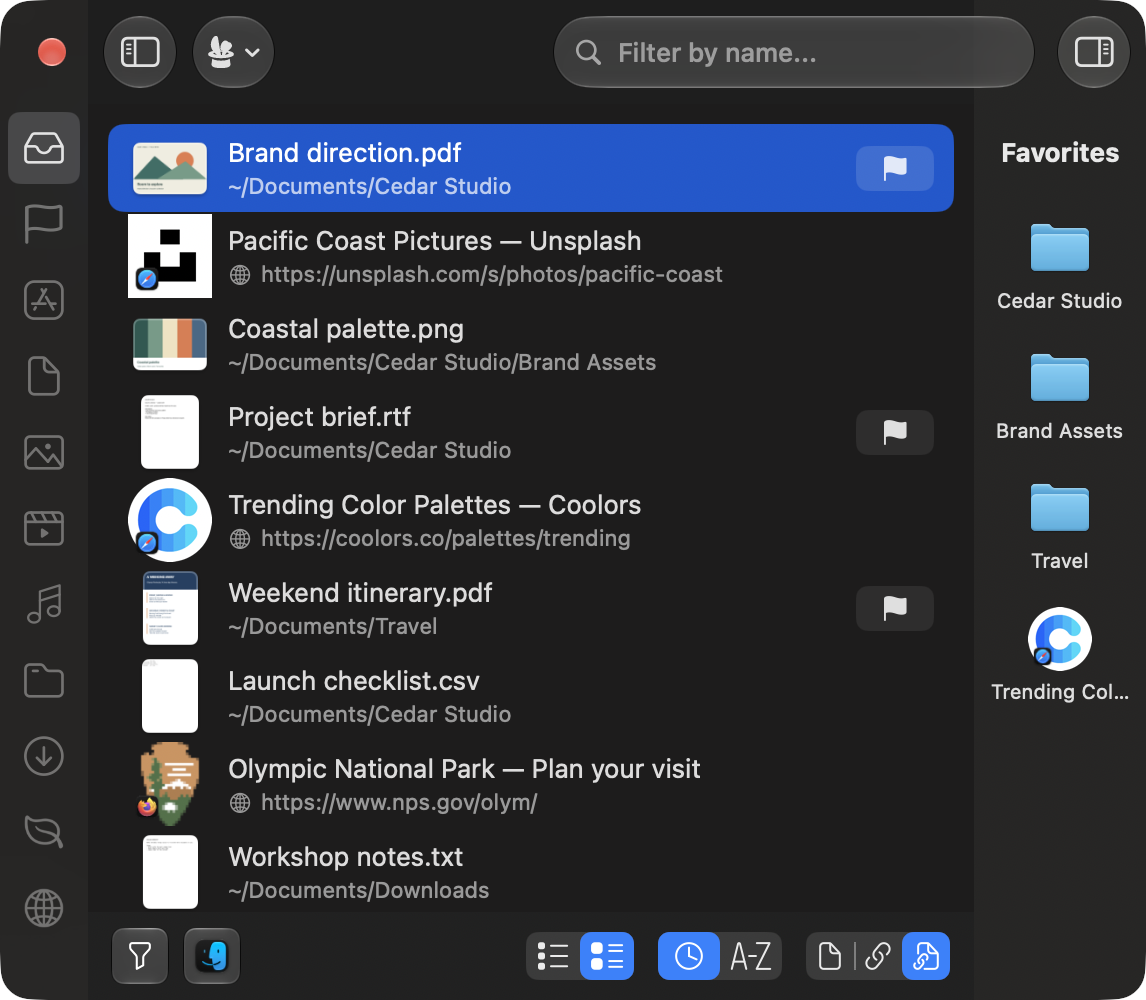
We’re excited to introduce Trickster 4, available today. It puts the web pages you work with next to your recent files, adds browser extensions for Safari, Chrome, and Firefox, and brings a window redesigned with Liquid Glass.
Trickster keeps the files you used most recently one click away in your Mac’s menu bar. If you downloaded a PDF a minute ago, it’s at the top of the list, so you don’t have to go looking for it in Finder. More of our work happens in a browser now, though, and a project’s report might live in Google Docs rather than on your Mac. Trickster 4 keeps those pages within reach, too.
If you already own Trickster, version 4 is a free update, wherever you bought it. Your license key keeps working, Mac App Store purchases are recognized automatically, and Setapp members get the new version through Setapp as usual.
What’s new in Trickster 4
- Web links next to your files. Saved pages show their title and site icon, and open in the browser they came from.
- Browser extensions for Safari, Chrome, and Firefox. The Safari extension is built into Trickster.
- Automatic tracking for cloud documents in Google Docs, Sheets, and Slides, Microsoft online documents, and Atlassian pages.
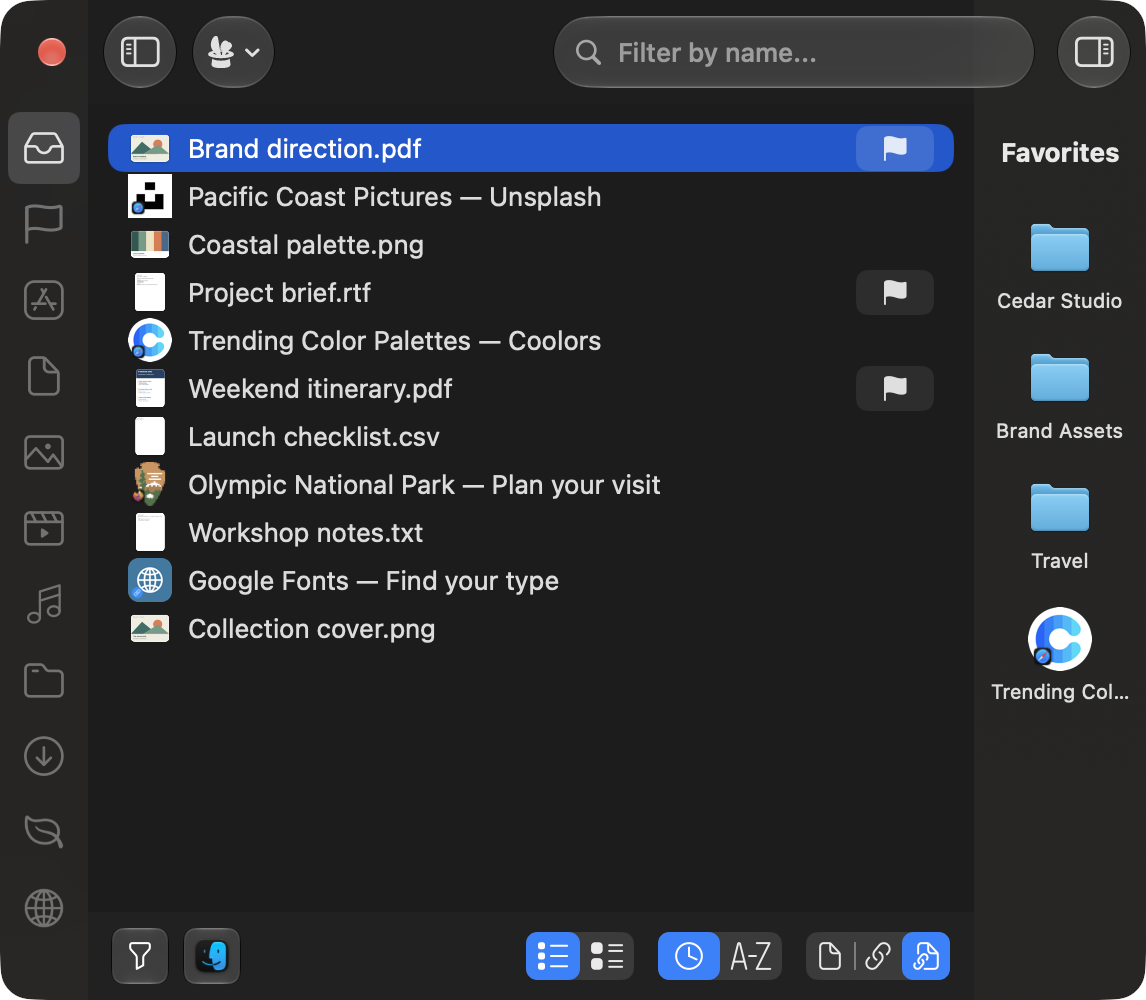
- Files, links, or everything. Switch with the control at the bottom of the window.
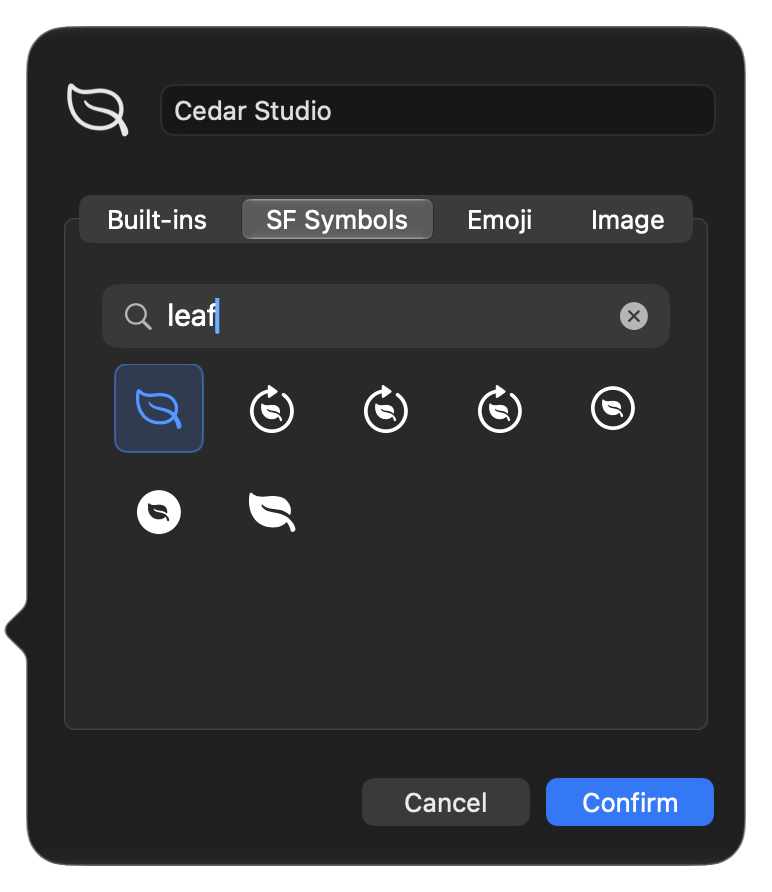
- Filters that cover files and links, with icons from SF Symbols, emoji, or your own images.
- A redesigned window with Liquid Glass.
- A new first-launch experience that helps you choose the folders Trickster watches.
- A heads-up when the notch hides Trickster’s menu bar icon.
- Start at login uses macOS login items, so Trickster appears in System Settings → General → Login Items.
Your links, next to your files
Save a web link to Trickster and it appears in the same list as your recent documents and downloads. Trickster remembers which browser the link came from and opens it there again.
Links work like any other item. You can flag one to come back to later or keep one you use every day in Favorites, and search and drag and drop behave the same way they do for files.
Say you’re putting together a presentation. The slide deck on your Mac and the shared spreadsheet with its numbers sit in one list, so you don’t have to remember which folder or browser tab held each one.
Bring your browser along
The Save to Trickster extension works in Safari, Chrome, and Firefox. Click it in your browser toolbar, check the title, and click Save to Trickster.
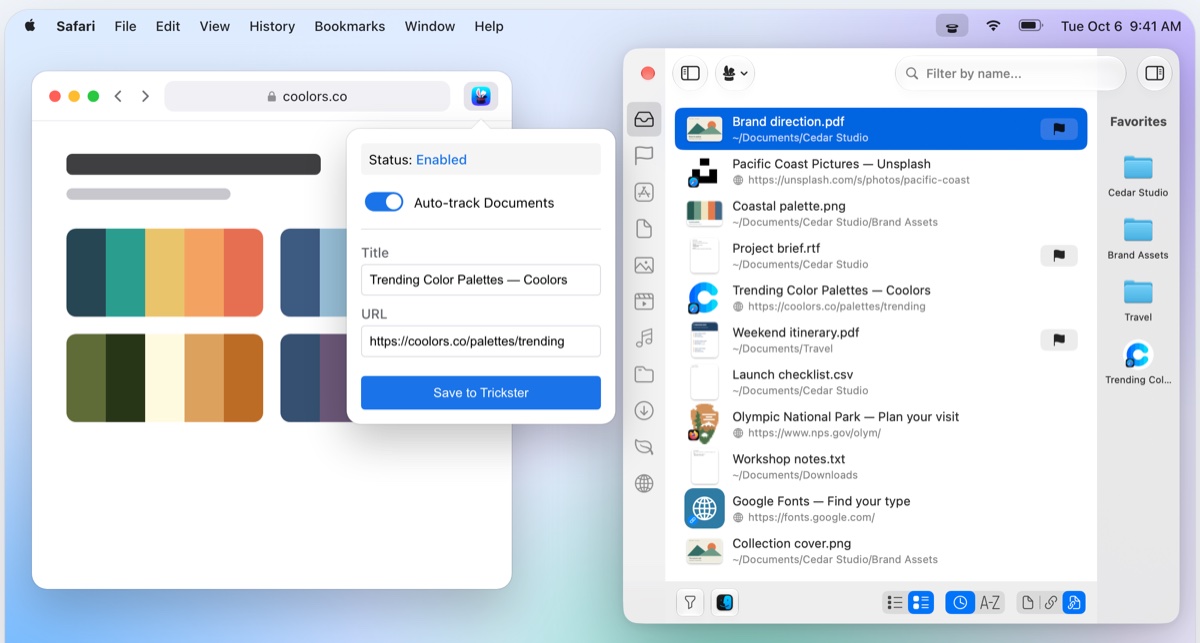
For supported cloud documents, the extension can do the saving for you. With Auto-track Documents turned on, it adds documents you open in Google Docs, Sheets, and Slides, supported Microsoft online documents, and Atlassian pages. It doesn’t save every page you visit. If you’d rather choose each page yourself, turn automatic tracking off. Link tracking settings in Trickster also let you leave out sources and addresses you don’t want in the list.
The Safari extension comes built into Trickster. The Chrome and Firefox extensions are free, and the browser extension guide links to them and walks you through setup.
A fresh look with Liquid Glass
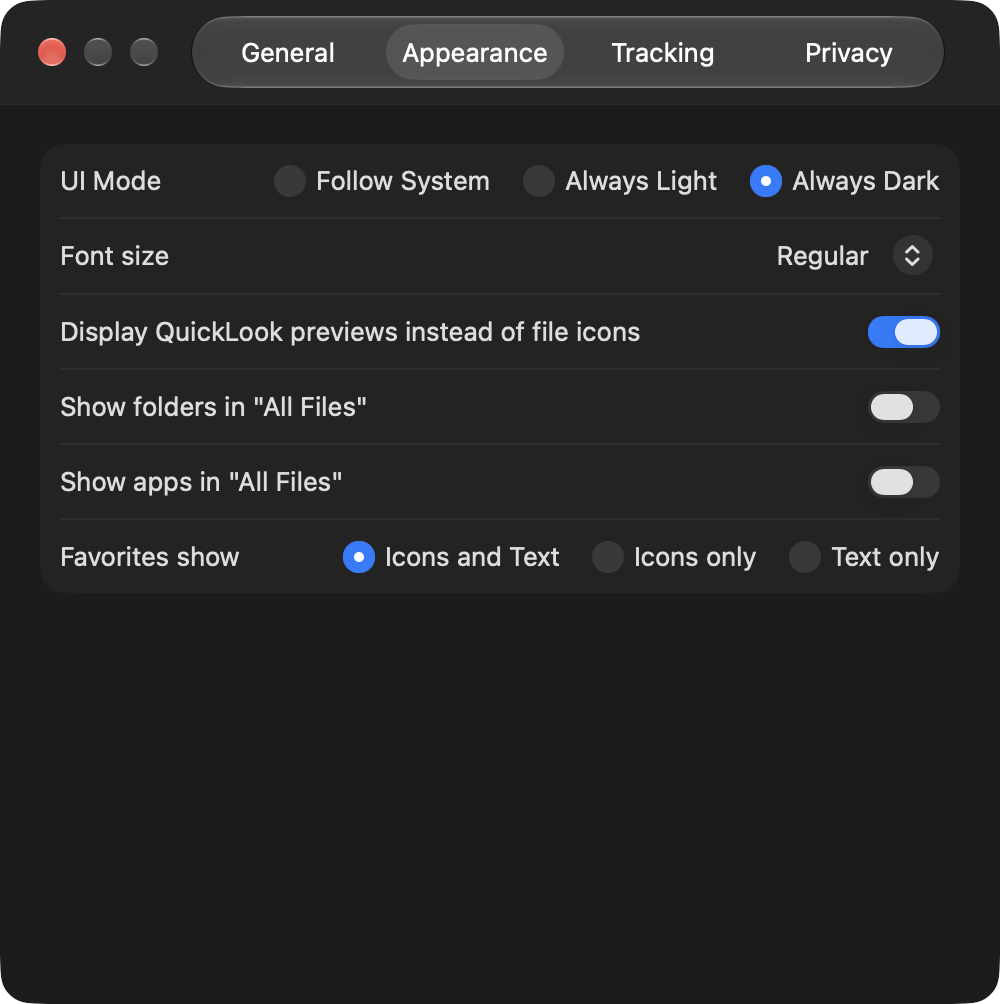
We’ve redesigned Trickster’s main window and settings with Liquid Glass. The familiar pieces are where you left them, with your recent items in the middle of the window and filters in the sidebar.
The first time you open Trickster 4 on a new Mac, a welcome window helps you choose the folders to watch. You can change them later in Settings, where you’ll also find options for how the window looks and opens.
Filters that follow your projects
A project usually has both local files and links. In Trickster 4, a custom filter can include files, links, or both. For example, one filter can match a project folder along with links whose address contains your client’s domain.
Give each filter an SF Symbol, an emoji, or your own image, so the right project is easy to spot in the sidebar.
Read more about filters in Trickster 4.
Still works with your tools
Trickster 4 keeps working alongside the apps you already use. Browse recent items from Alfred with the Trickster workflow, open DEVONthink items with their database location shown in the list, see which items have Hookmark hooks, and automate Trickster with AppleScript.
Your files and links stay on your Mac, and there’s no account to create. The browser extensions send links straight to Trickster on your Mac, not through a server.
Try it with your own work
Trickster is free to download, and everything is unlocked for the first 14 days. After that, the free version keeps working with your 10 most recent items, and saving links stays available. A one-time purchase unlocks the full version, with unlimited items, dragging items out of Trickster, and creating your own filters. There’s no subscription. The manual explains the differences.
You can get Trickster 4 from our website, the Mac App Store, or Setapp, where it’s always the full version.
Trickster 4 requires macOS 26 or later. If your Mac runs an earlier system, you’ll find older versions on the download page. New to Trickster? The manual’s Start here page will help you settle in.
Thank you to everyone who has made Trickster part of their day and shared ideas with us. We’d love to hear how you use version 4. Get in touch.
Trickster: Recent Files and Links
Your recent files and links, one click away in your menu bar. Free to download, with a one-time purchase to unlock the full version.