

Welcome to Trickster 4
Keep recent files and saved links within reach from your Mac’s menu bar.
Trickster keeps track of files you open, edit, and download in the folders you choose. In version 4, you can also save web links and bring supported cloud documents into the same list.
Trickster 4 requires macOS Tahoe (26) or later. If you use an older Mac, see the download page.
Install Trickster
Download Trickster from our website. The download is a ZIP archive: double-click it to expand it, drag Trickster to your Applications folder, and open it from there. When Trickster is running, its top hat appears in your menu bar.
Trickster is also available on the Mac App Store and Setapp, which install it for you.
Already bought Trickster? See Activate your license or purchase to unlock it. License keys work only in the version from our website.
Start with your working folders
The first time you open Trickster, click Choose Folders…. Select the folders you work in, then click Start Watching. Documents, Desktop, Downloads, and a current project folder are useful places to start. You choose which ones to include.
Trickster also watches subfolders. Choose specific working folders instead of your entire home folder or disk, so everyday system activity doesn’t crowd your list. You can change your choices in File Tracking.
Find your way around
Click the top hat in the menu bar to open Trickster.
- Recent items appear in the middle. Double-click an item, or select it and press Return, to open it.
- Filters on the left narrow the list to the things you need. Hover over an icon to see its name. The left sidebar button in the toolbar shows or hides Filters.
- Favorites on the right keep frequently used items close. Use the right sidebar button at the far right of the toolbar to show or hide Favorites.
- The bottom controls change the view, sort order, and whether you see files, links, or both.
- The main menu button, marked with Trickster’s rabbit icon, sits in the toolbar at the top left, next to the Filters button. It opens tracking options, Settings, and the rest of Trickster’s commands.
- Filter by name… in the toolbar narrows the current list as you type. If something seems to be missing, check your search, selected filter, and file/link view.
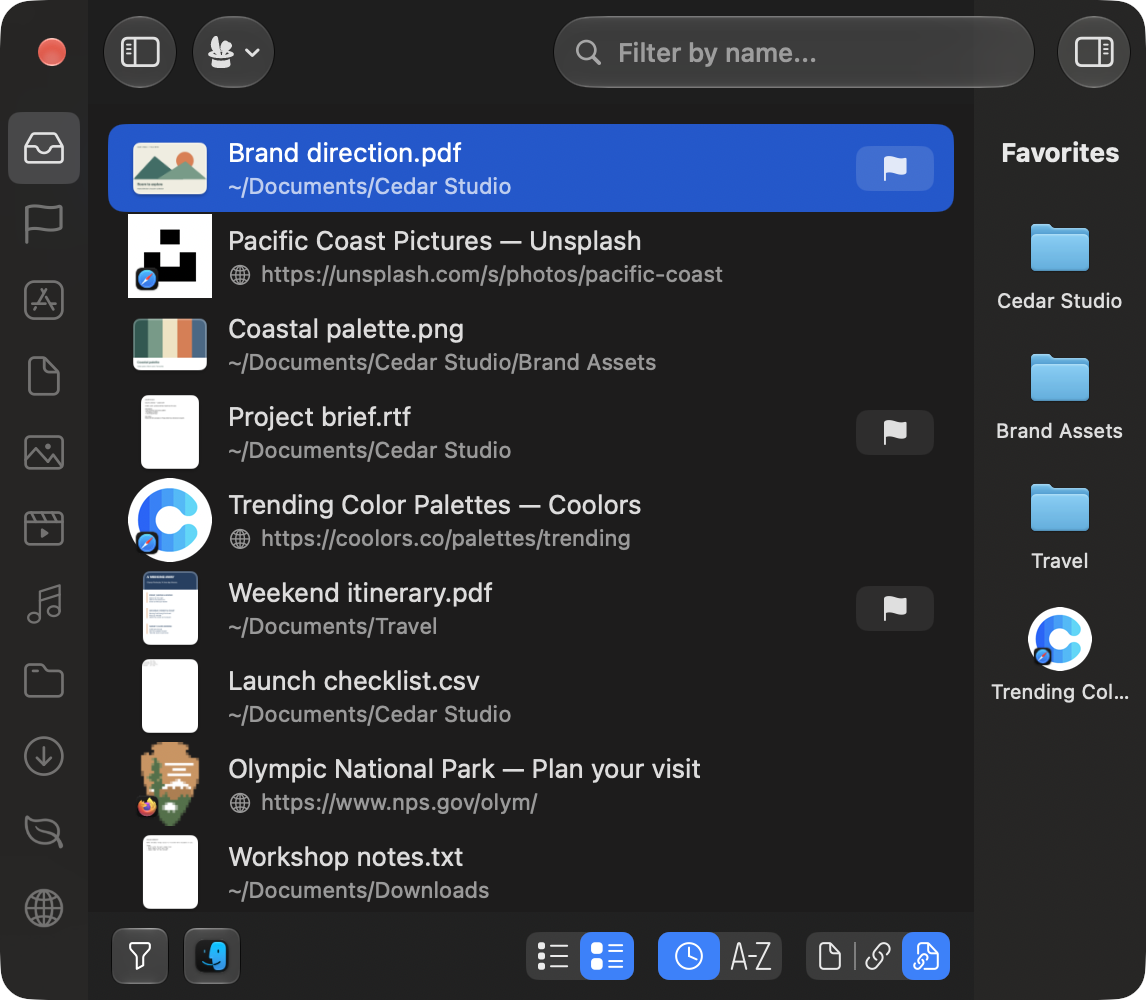
Files and saved links appear together in expanded rows, with Filters on the left and Favorites on the right.
A few things to try
Select a file and press Space for a Quick Look preview, or ⌘Return to reveal it in Finder. Drag a file into an email, another app, or a Finder folder.
Flag an item you want to return to, or add it to Favorites for regular use.
For web pages, install a browser extension and save your first link. You can show links on their own or alongside your files.
Set up Trickster your way
- Choose folders and exclusions
- Save pages from your browser
- Control link tracking
- Create filters for files and links
- Change appearance and window behavior
- Learn the keyboard shortcuts
- Understand the trial and full version
- Activate your license or purchase
Thank you for choosing Trickster! If you need a hand, get in touch.