
Save pages from your browser
Bring web pages and supported online documents into Trickster with Save to Trickster.
The Save to Trickster extension lets you save a page to your recent list without copying and pasting its address. It also recognizes supported cloud documents and can add them as you visit them.
Set up the extension
Keep Trickster 4 running while using the extension.
- Safari: the extension is included with the app. Open Safari’s Settings → Extensions and enable Save to Trickster.
- Chrome: install Save to Trickster from the Chrome Web Store. Check that the publisher is Apparent Software.
- Firefox: install Save to Trickster from Firefox Add-ons.
When the browser asks for access to supported document sites, allow the sites you want the extension to track. If Trickster asks you to approve the connection, check that it is for the extension you just installed, then approve it.
Save a page
- Open the page you want to keep.
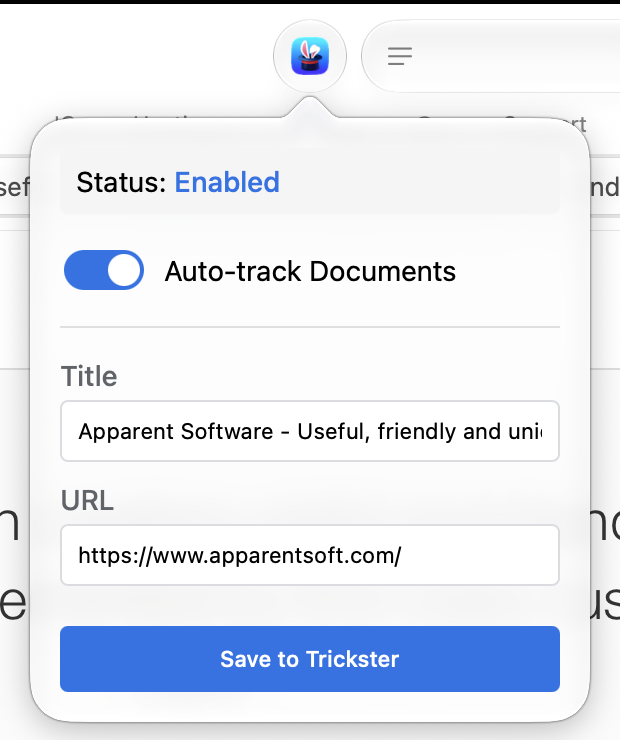
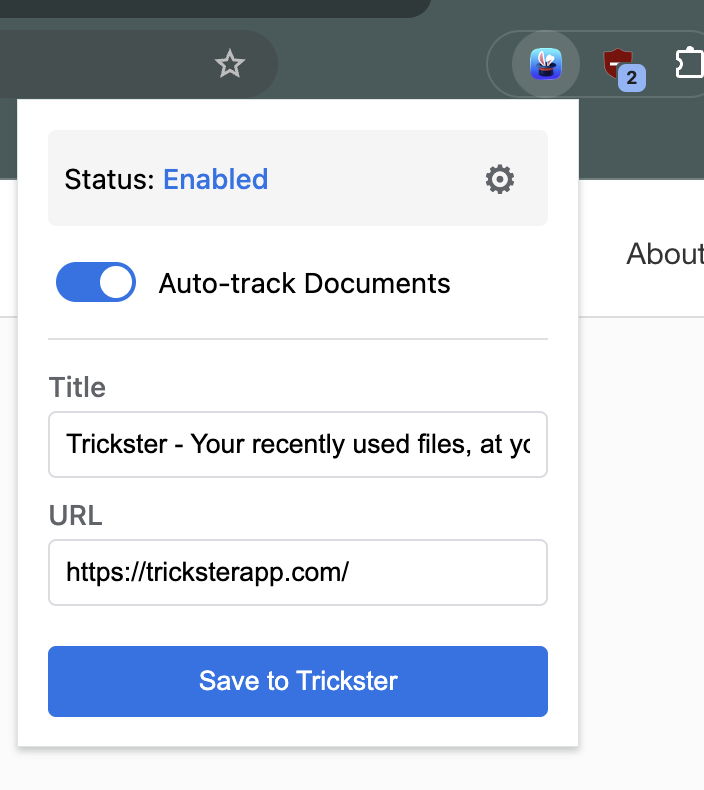
- Click Save to Trickster in the browser toolbar. You may need to open your browser’s extensions menu to find it.
- Check the Title and URL. You can edit the title to make the page easier to recognize.
- Click Save to Trickster.
- Open Trickster and switch the bottom view control to links or both files and links.
Saving a page that is already in your list updates the existing link, rather than adding a duplicate.
Double-click the saved link to open it again. Trickster uses the recorded source browser when it is available. Right-click a link to choose a different browser from Open In….
Automatically track cloud documents
The extension’s Auto-track Documents switch controls automatic capture of supported documents, including Google Docs, Sheets, and Slides, and supported Microsoft online documents and Atlassian pages.
This follows supported document pages, rather than keeping a history of every website you visit. For other pages, use Save to Trickster. Turning off automatic tracking still lets you save pages manually.
If a page doesn’t appear
Make sure Trickster is running and the extension is connected. A red ! on the extension’s toolbar icon means it can’t reach Trickster. In Trickster, open Settings → Tracking and check that Track URLs from apps is enabled.
Clear the search field and select a filter that includes links. Also check link tracking exclusions, and whether the free version’s display limit is hiding older items.
If automatic tracking isn’t working for a supported document, check the extension’s access to that website in your browser settings. You can still try saving the page manually.