
Filters for files and links
Narrow your recent list to a project, a file type, saved links, or flagged items.
The icons down the left side of Trickster are filters. Click one to narrow your list, or hover over it to see its name. All Files, at the top, shows everything Trickster tracks. You can drag filters into a different order.
The bottom view control also lets you show files, links, or both. It works together with your selected filter and search text. A filter that includes only files will not show links, even if you choose the links view.
Create or edit a filter
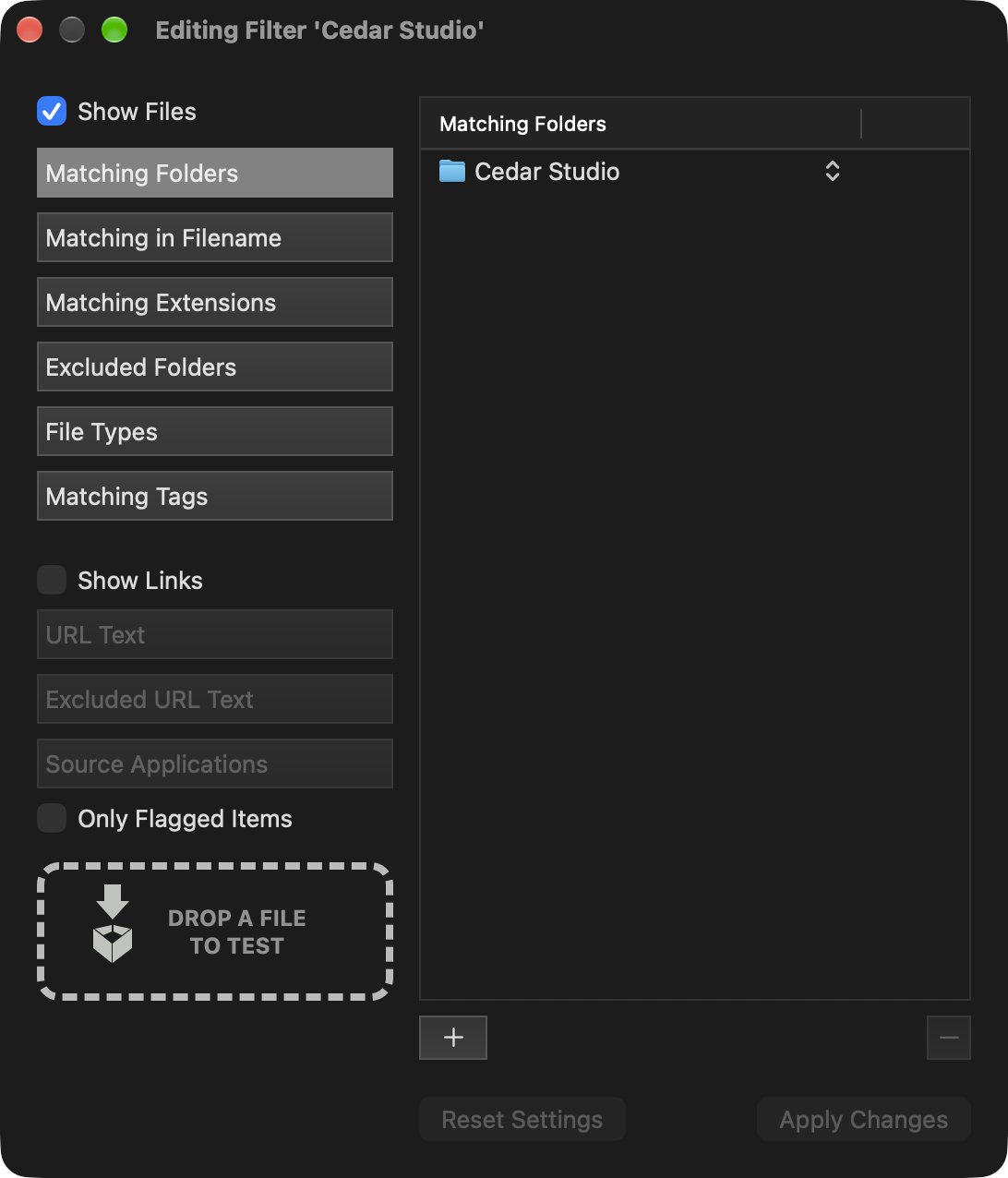
Right-click a filter and choose Add Filter… or Edit Filter…. The filter menu in the bottom bar provides the same commands, along with Edit Icon and Name… and Delete Filter. Creating and editing filters is part of the full version. When adding a filter, first choose its name and icon and click Confirm, then set its rules. Click Apply Changes to save the rules.
Use Show Files and Show Links to choose whether the filter includes files, links, or both. Then add the rules you need.
File rules
Match folders, file names, extensions, file types, or tags. Exclude paths you don’t want to see. For example, a project filter can show recent files from that project’s folder.
Link rules
Use URL Text to match text in a link’s address or page title. Use Excluded URL Text to leave matching links out. Text matching ignores upper- and lowercase differences.
Source Applications lets you choose the apps that sent the links. The list contains sources Trickster has already received links from.
Put a project in one place
Create a filter that includes both files and links. Add the project folder under the file rules and a recognizable part of the project’s web address under URL Text. You’ll see recent local files and matching saved links together.
Within each type, an item can match any inclusion rule; it does not have to match all of them. Exclusions then remove unwanted matches. If you add no inclusion rules for a selected type, all tracked items of that type can appear.
Only Flagged Items narrows the result to flagged files and links.
Give a filter its own icon
Choose Edit Icon and Name… from a filter’s menu. You can use a symbol, an emoji, or a custom image. Pick something you’ll recognize at a glance, such as a camera for a photo project.
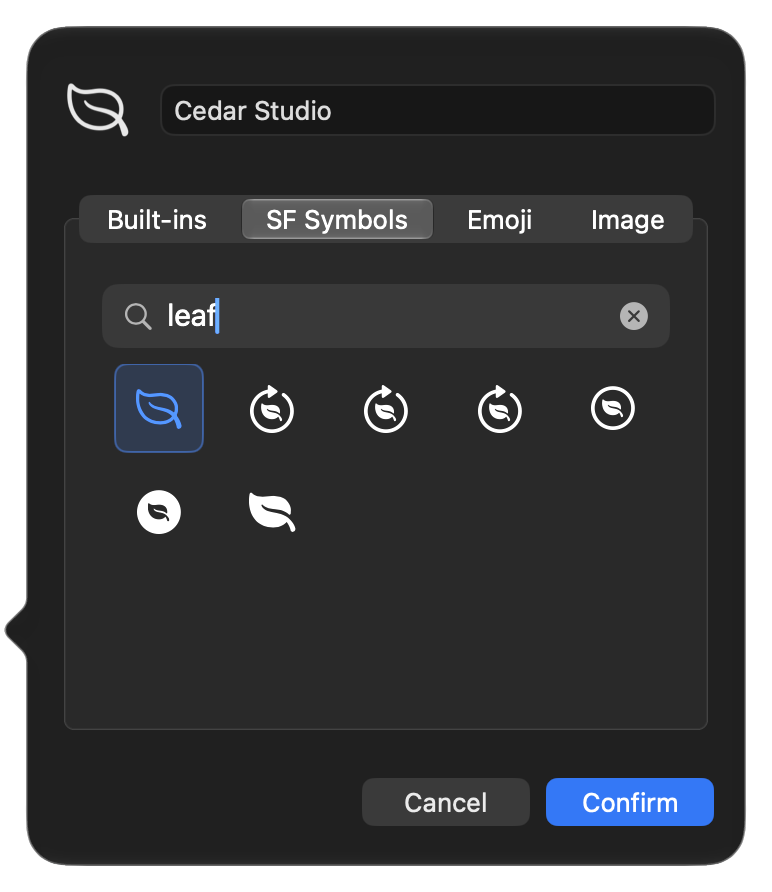
The icon is a label for your filter. Changing it does not change the filter’s rules.
Test your rules
Drop a file into Drop a file to test in the editor to check its file rules. This tests the filter itself, not your global tracking settings.
If an item has never been tracked, changing a filter won’t add it. Check File Tracking or Link Tracking first.