
Manual
Using Trickster with LaunchBar
Use LaunchBar actions to send files to Trickster and work with recent files.
Trickster’s AppleScript and URL schemes for Trickster automation support allowed building an integration with the fantastic Mac application LaunchBar.
Installing the Action
Click on one of the icons below to download the action (Choose Setapp version if you use Trickster from Setapp). After it downloads, double-click on it. LaunchBar will prompt you to install it. It’s that easy.
How to use the action
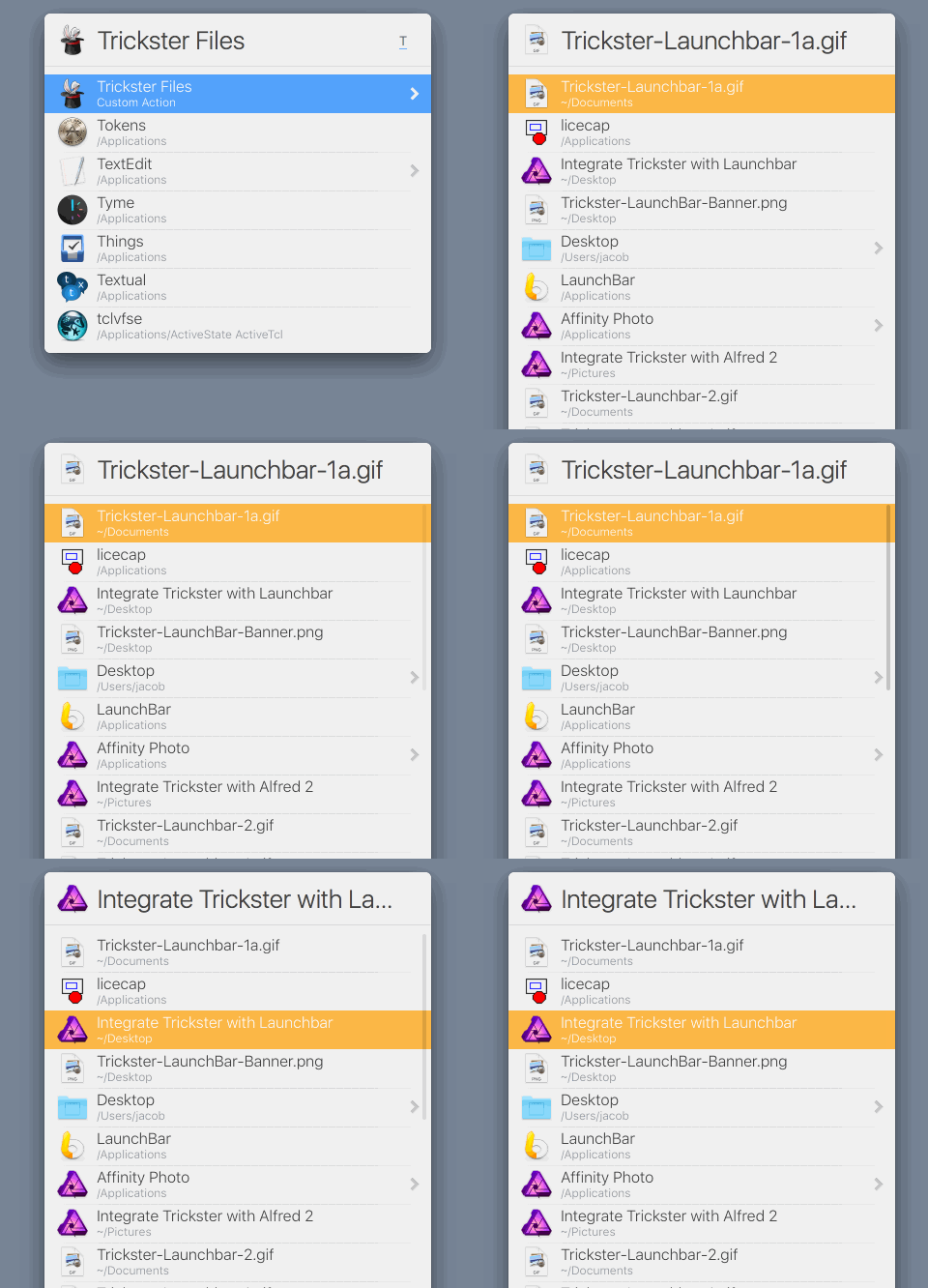
The action is called “Trickster Files”, so you can invoke by typing starting letters, such as tf or even shorter after Launcher learns it. We suggest adding a shortcut for the action (such as the letter t). Long press on t will show all the latest files which you further use like any other file list in LaunchBar.
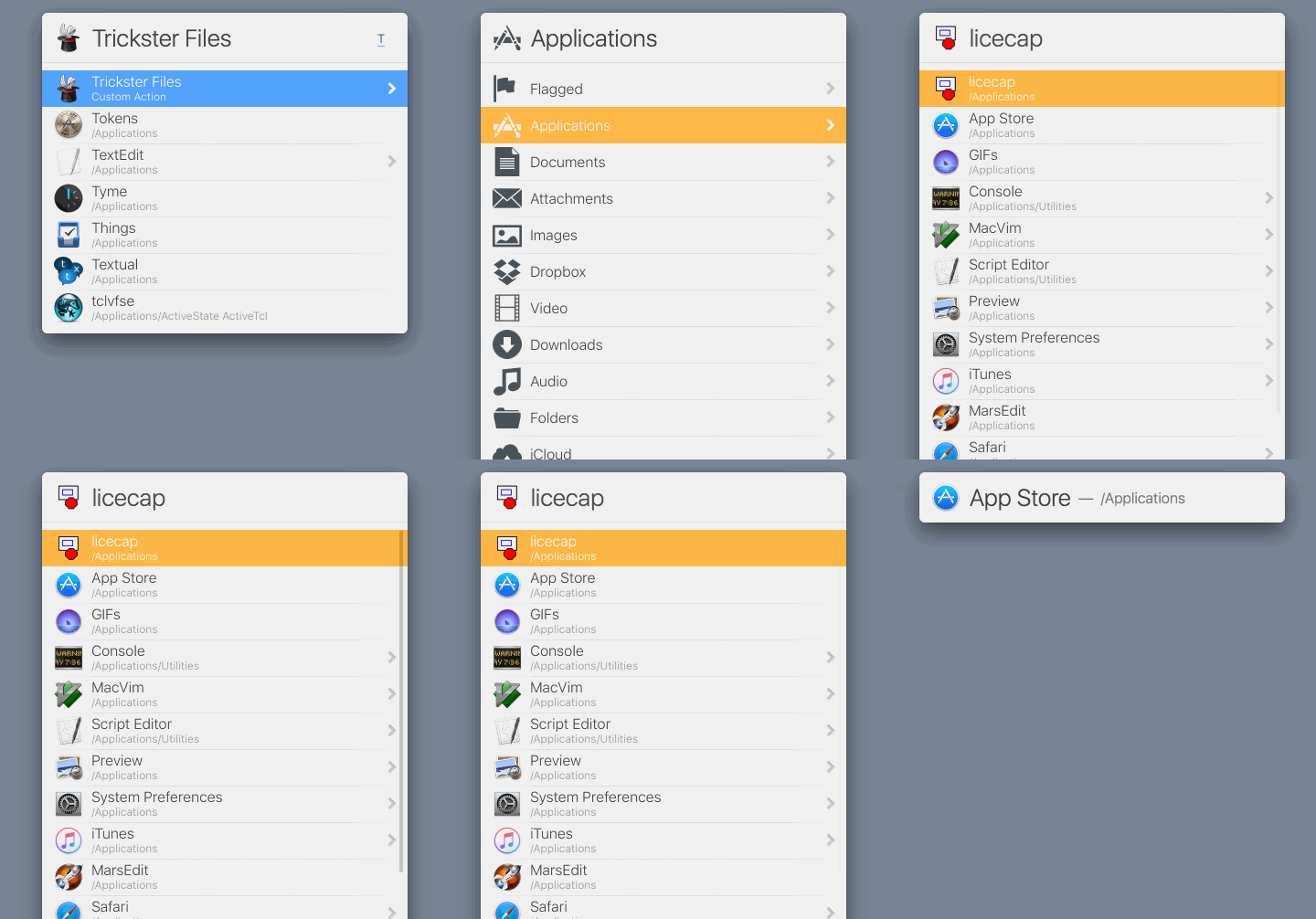
Another option is to show the action and press Command-Right when it’s selected to show the list of filters enabled in Trickster, then navigate the filters.
Another integration option (maybe the most useful)
You can use LaunchBar’s “Instant Send” shortcut to send the selected file in Trickster’s own window to LaunchBar immediately, like you’d do from Finder. Very handy.