

Use an item’s menu
Open, organize, and remove items from their right-click menu.
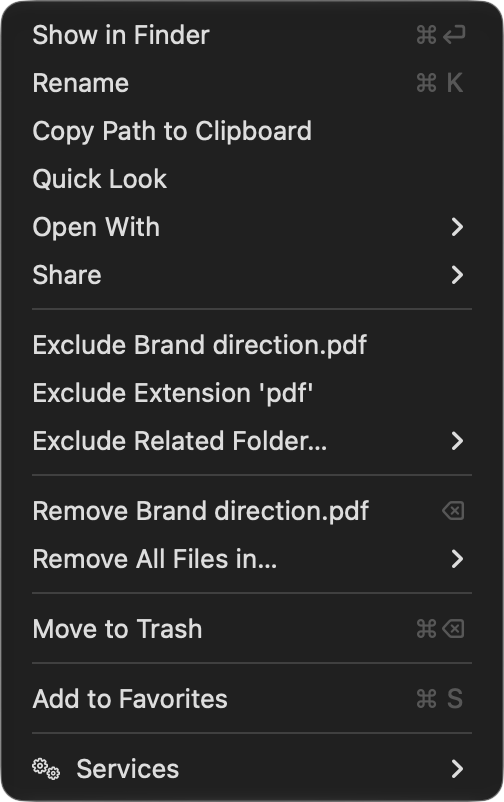
Right-click an item in the recent list to see its available actions, or select it and press ⌘M. If you have selected several items, the menu offers actions for that selection.
For files, you can show them in Finder, rename them, copy their paths, preview them with Quick Look, choose an app from Open With, share them, or move them to the Trash. For links, you can open the link, rename it, copy its address, or choose a browser from Open In…. You can also add items to Favorites. When you have selected several items, the menu also offers Set Flag and Remove Flag for the whole selection. To flag a single item, use the flag at the right of its row or press ⌘F.
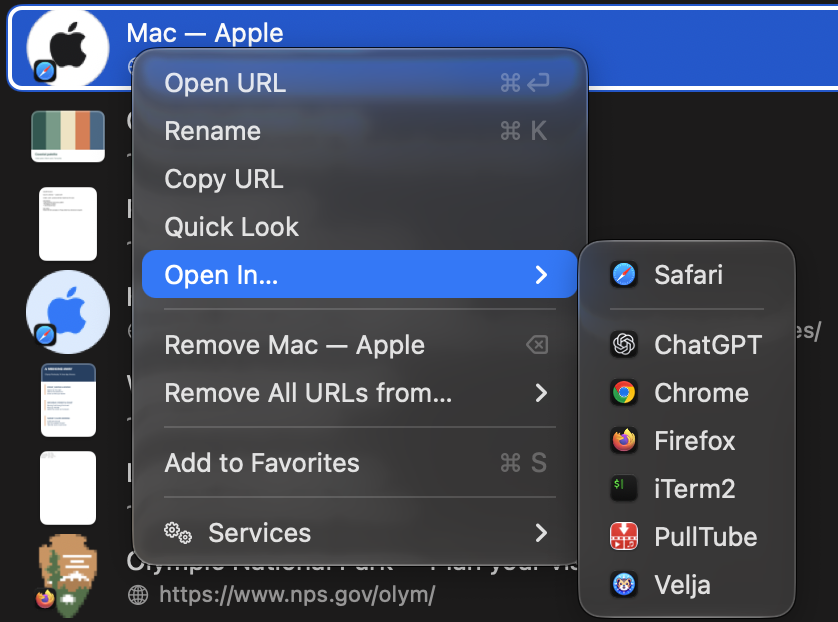
In Open In…, the browser the link came from is listed first, followed by your other browsers in alphabetical order. If Trickster doesn’t know where the link came from, or that browser is no longer installed, your default browser comes first.
Remove from the list or move to the Trash?
Remove takes the item out of Trickster’s list. The original file stays on your Mac, and a removed web link does not delete the page or cloud document. A tracked file can appear again when you use it.
Remove All Files in and Remove All URLs from clear a whole folder or website from the list at once. Choose how much of the folder path or web address to match from the submenu.
Move to Trash moves the actual file to your Mac’s Trash. Use this only when you want to discard the file itself.
Exclude commands add rules to File Tracking so matching files will not be tracked in future.
Pressing Delete removes selected items from the list. ⌘Delete moves selected files to the Trash. These are different actions.