

Choose which files to track
Watch your working folders and leave out files you don’t need in your recent list.
Click the main menu button in the toolbar and choose Configure File Tracking…. You can also open Settings → Tracking → Configure File Tracking.
Add watched folders
Select Watched Folders, then click the + button to choose a folder, or drag a folder into the list from Finder. Click Apply Changes when you’re done. Trickster watches that folder and its subfolders for new activity.
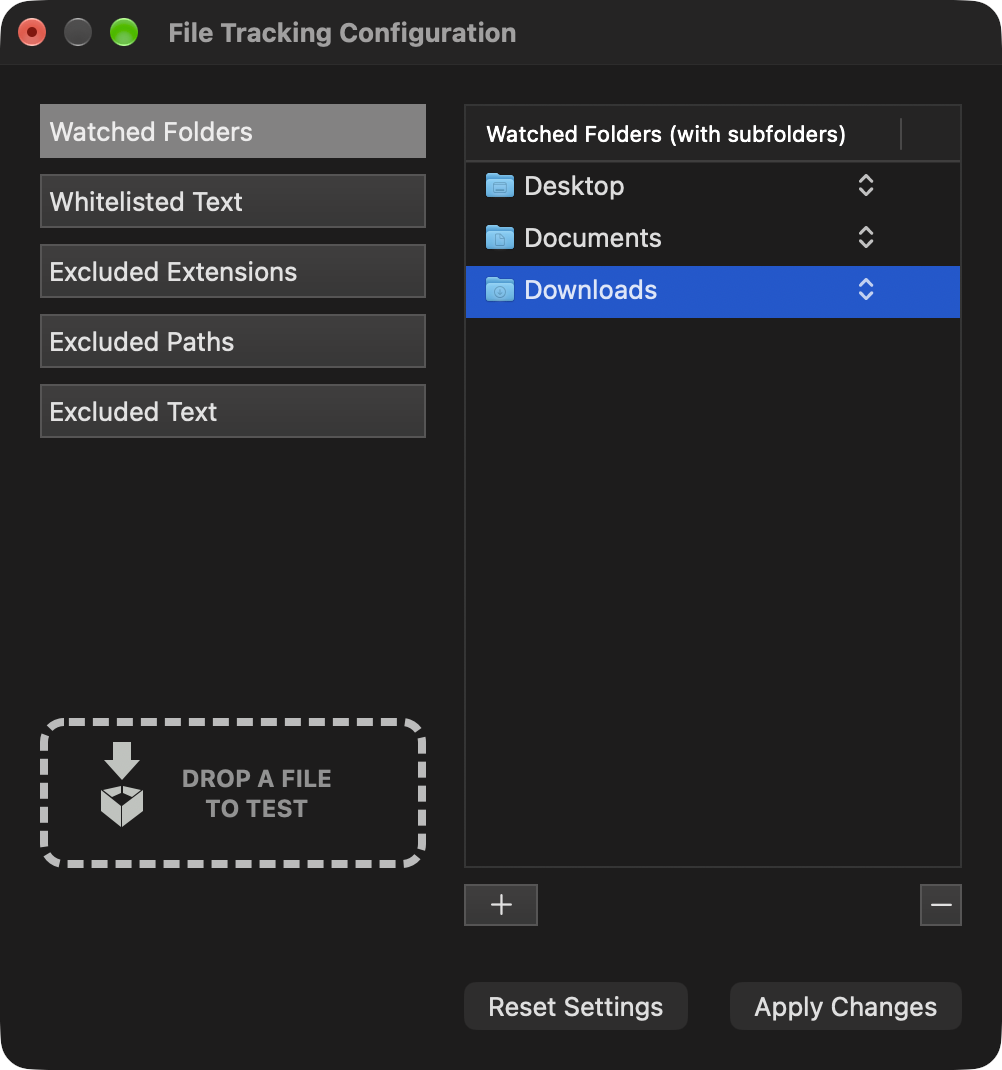
To stop watching a folder, select it and click −, then apply the change. This changes what Trickster watches; it does not delete the folder.
Start with specific folders such as Documents, Downloads, Desktop, or a current project. Watching your whole home folder or disk can fill the list with files created by macOS and other apps.
Watch an app’s iCloud Drive folder
Many iPhone and iPad apps save their files to their own folder in iCloud Drive. Add that folder as a watched folder, and what you save there shows up in Trickster on your Mac. For example, a document you scan on your iPhone is ready to drag into an email a few moments later. In the folder picker, select iCloud Drive in the sidebar and choose the app’s folder. The same works for a shared iCloud Drive folder you use between your Macs.
Leave out unwanted files
Use exclusions to keep the list useful. For example, add xml under Excluded Extensions if you don’t want XML files to appear. Enter extensions without the leading period.
You can also exclude paths and text in file names. Whitelisted Text lets matching paths through despite other exclusions. Hover over the options in the dialog for details.
Drop a sample file into Drop a file to test to check it against the current rules before applying your changes.
Track opened files only
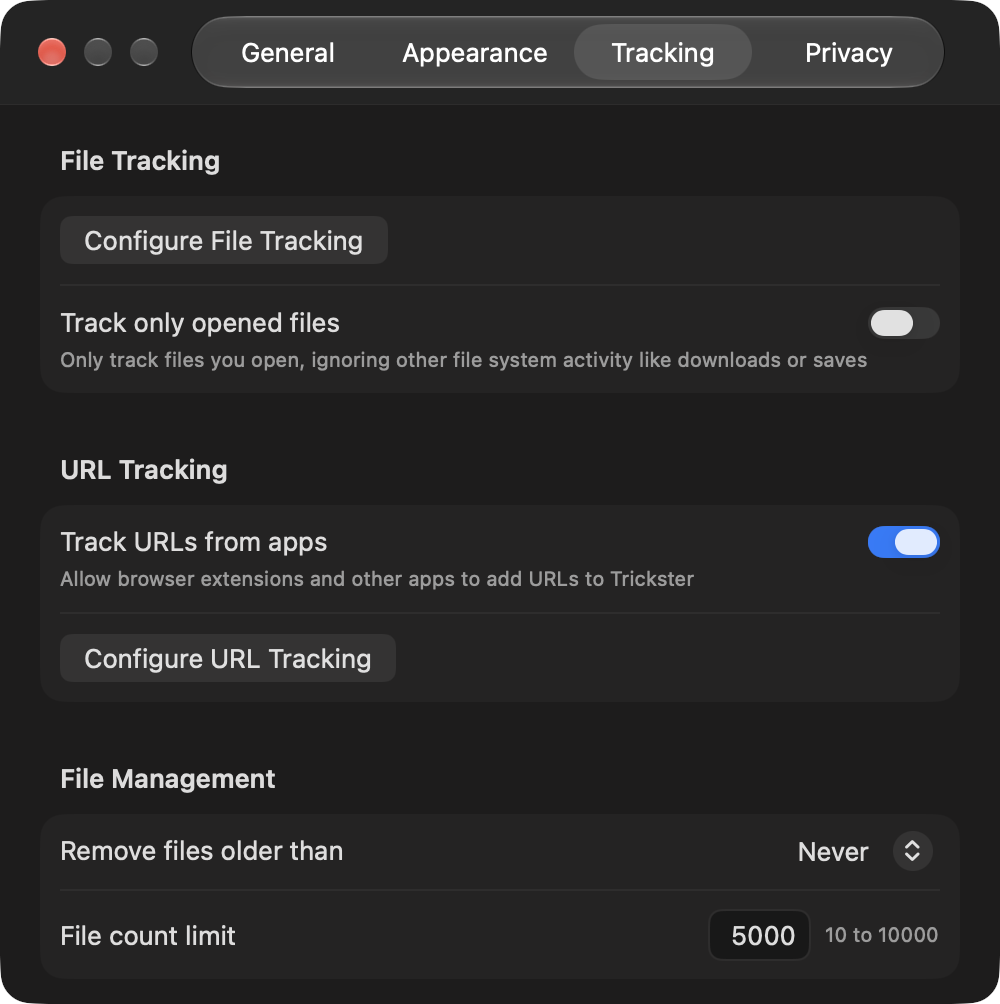
In Settings → Tracking, enable Track only opened files if you want to focus on files you open. This ignores other activity, such as downloads and saves, so leave it off if you want those to appear too.
How long items stay in the list
Settings → Tracking also has Remove files older than and File count limit options. These manage Trickster’s recent list, not the original files on your disk. The free version has a separate 10-item display limit.
Filters change which tracked items you see. Tracking rules decide which items enter the list in the first place. Links have their own tracking options.