

Find items related to your current app
Narrow the list to files and links associated with the app you are using.
Click the current-app button in Trickster’s bottom bar, or press ⌘P, to toggle the Active Application filter. The button shows the icon of the app you were using before opening Trickster, and it is highlighted while the filter is on.
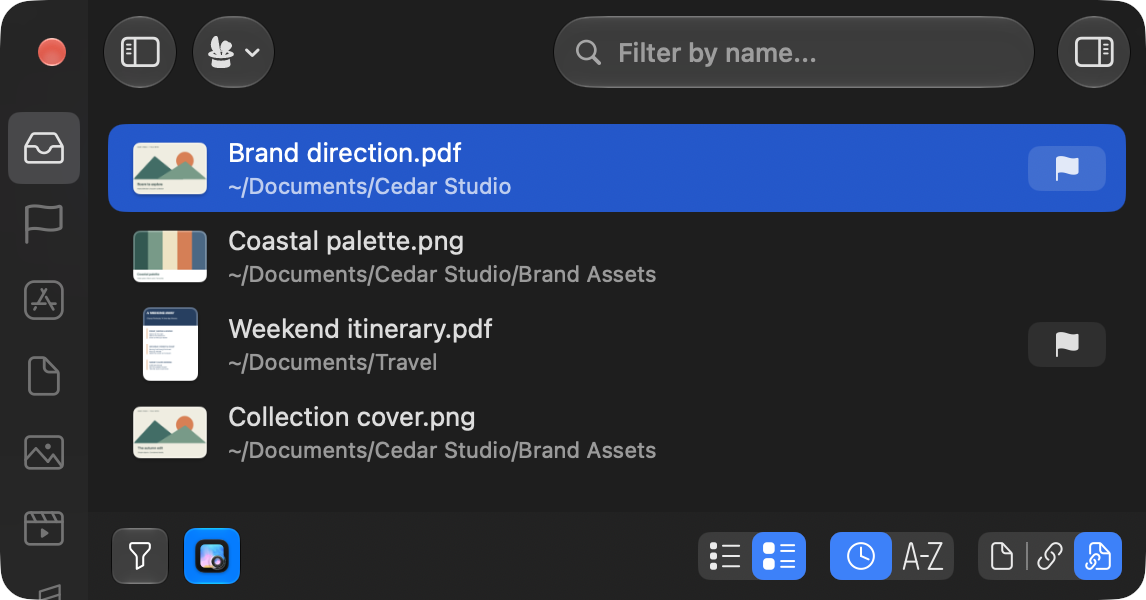
For files, Trickster considers the app that was active when the file was tracked and whether the current app can open the file. Apps that accept many file types may still show a broad list.
For links, Trickster considers the recorded source app and apps registered to open the link. This helps you return to browser pages or app-specific links from the app you’re working in.
The Active Application filter works together with the selected sidebar filter, search text, and file/link view. Turn it off if you want to see items from other apps again.