Make Trickster comfortable to use
Adjust text, previews, Favorites, how the Trickster window opens, and privacy.
Click the main menu button in the toolbar and choose Settings…, or press ⌘, while Trickster is open. Settings has four tabs: General, Appearance, Tracking, and Privacy. Tracking is covered in File tracking and Link tracking.
Appearance
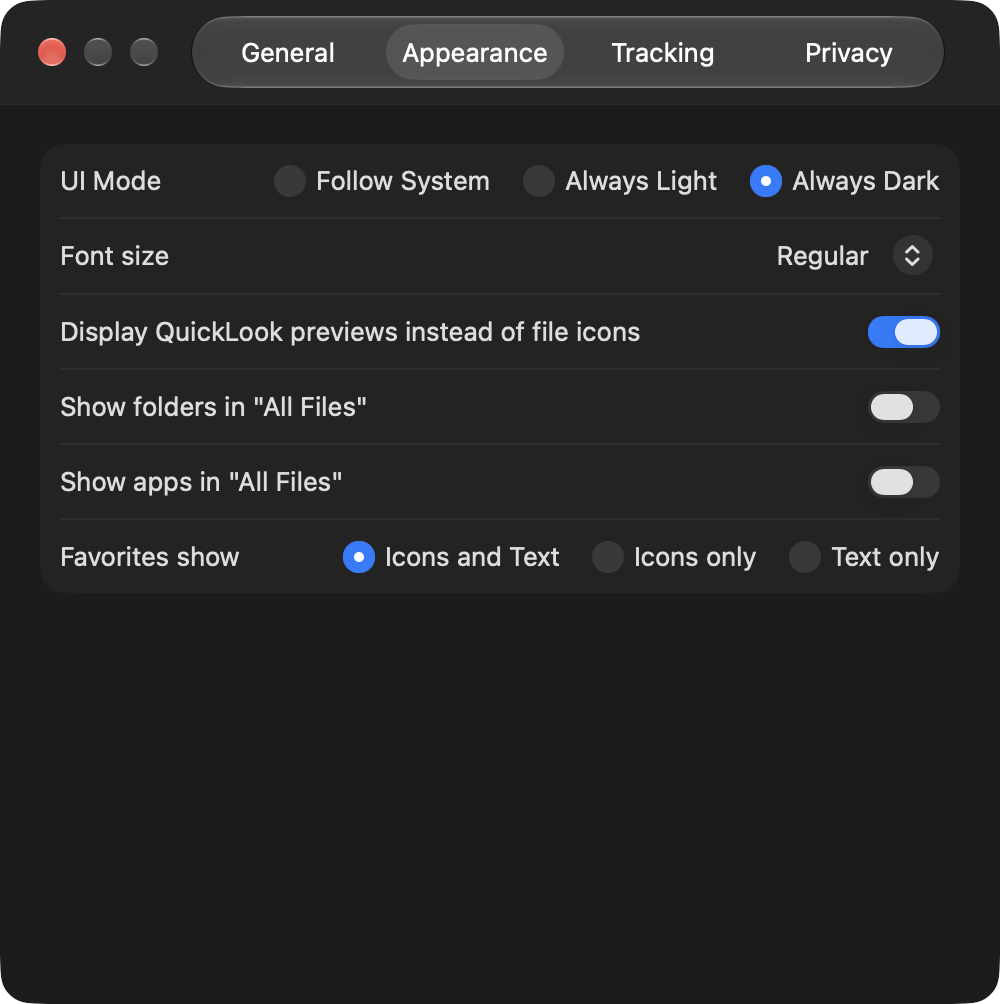
In Appearance, choose whether Trickster follows your Mac’s appearance or always uses light or dark mode. You can also:
- Set the Font size to Regular, Larger, Even Larger, or Largest to make names and paths easier to read.
- Choose whether to display Quick Look previews instead of file icons.
- Show or hide folders and apps in All Files.
- Change Favorites show to display icons, text, or both in the Favorites sidebar.
Use the bottom view controls in the main window to switch between compact and extended rows, and to sort by date or name. Extended rows are useful when you want to see more detail beneath each item name.
General and window behavior
In General, turn on Launch automatically at login if you want Trickster ready whenever you sign in, and set the Global shortcut that opens and closes the window from any app.
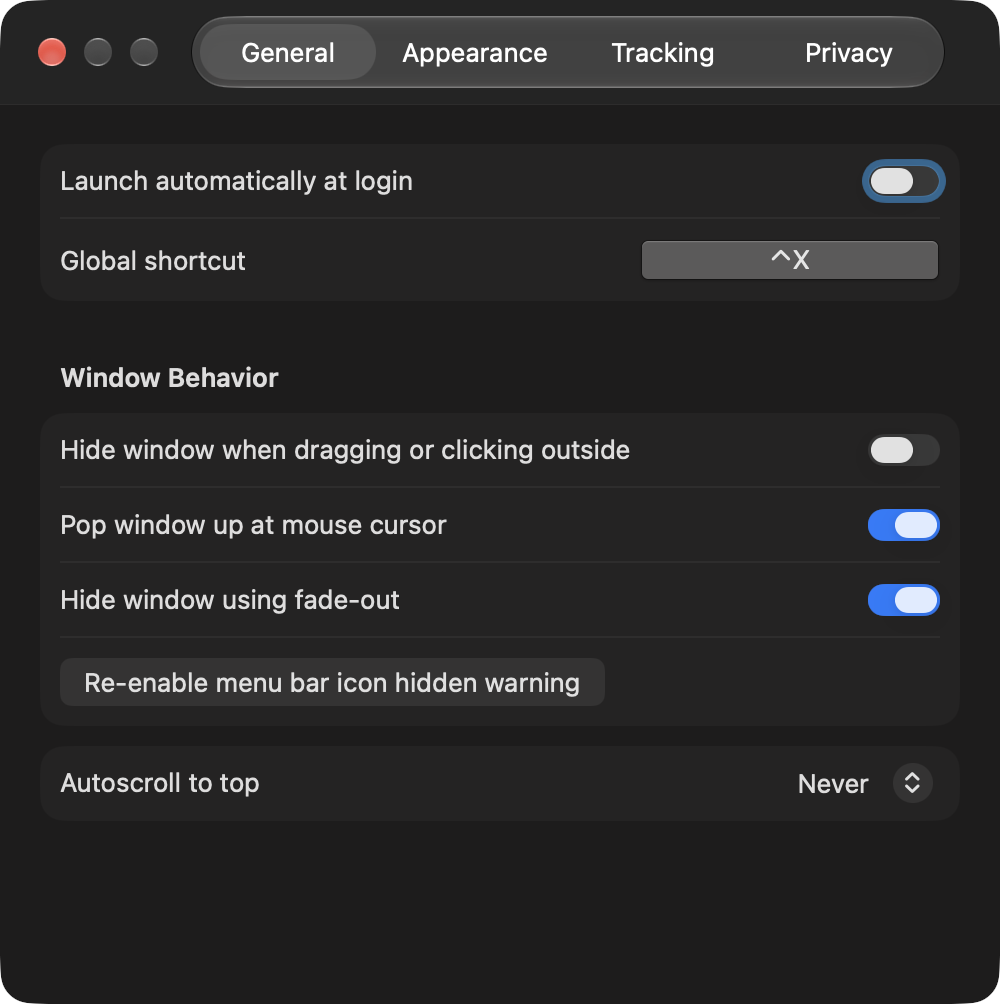
The Window Behavior options control how the window comes and goes:
- Hide window when dragging or clicking outside makes Trickster get out of the way as soon as you return to your work. Turn it off to keep the window open while you switch between apps.
- Pop window up at mouse cursor opens the window next to your pointer, on the display you’re working on, instead of below the menu bar icon.
- Hide window using fade-out animates the window when it hides. Turn it off if you prefer it to disappear immediately.
- Re-enable menu bar icon hidden warning brings back the notice Trickster shows when its icon may be hidden behind the camera notch on a MacBook, in case you dismissed it earlier.
Autoscroll to top chooses how often Trickster scrolls back to the top of the list when you open it, from every time to never.
Detach the window from the menu bar
Trickster’s window normally opens just below its menu bar icon. Drag the window by its toolbar to move it anywhere on screen. Once you move it away from the icon, it stays where you left it each time you open it. To attach it again, drag it back under the menu bar icon.
A detached window works well with Hide window when dragging or clicking outside turned off, so Trickster stays open beside your work.
Larger folder paths
The Font size setting enlarges both names and the folder paths shown beneath them. If you want only the folder paths to be larger, quit Trickster, run this command in Terminal, and open Trickster again:
defaults write com.apparentsoft.trickster FolderFontSize -int 2Use a whole number: larger numbers make the paths bigger, and negative numbers make them smaller. To go back to the standard size, run defaults delete com.apparentsoft.trickster FolderFontSize. For the Setapp edition, use com.apparentsoft.trickster-setapp instead of com.apparentsoft.trickster.
Privacy
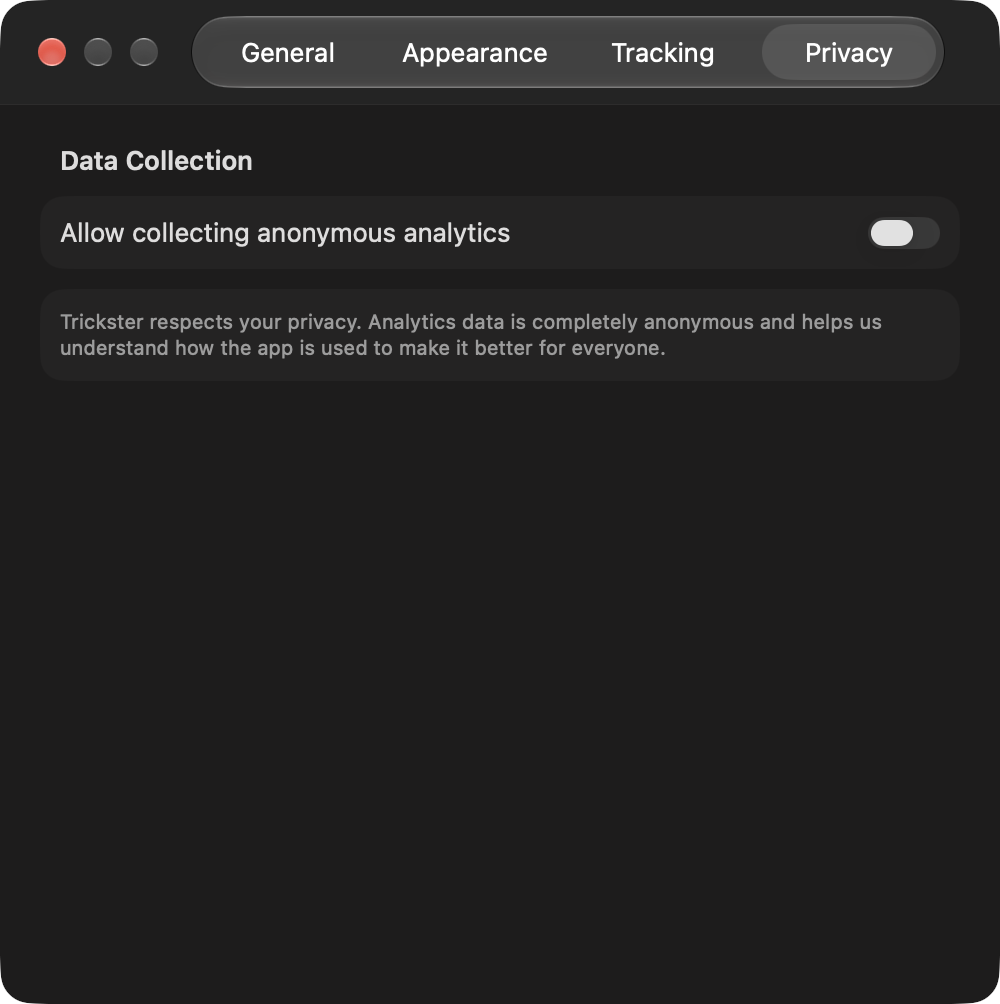
In Privacy, Allow collecting anonymous analytics controls whether Trickster sends anonymous usage statistics that help us understand how the app is used. Turn it off if you prefer not to share anything.