Choose which links to track
Control which apps and web addresses can add links to your Trickster list.
Trickster 4 accepts links from browser extensions and other apps. You decide which links to keep.
Turn link tracking on or off
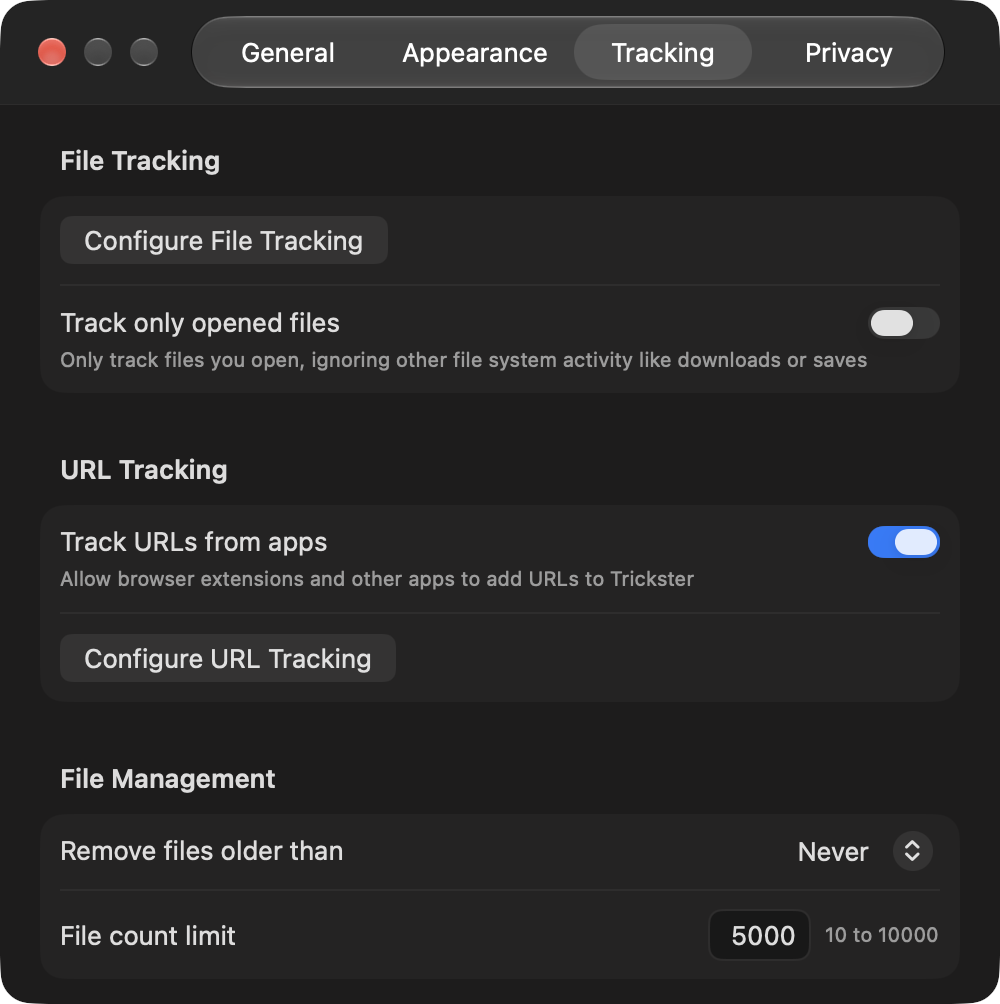
Open Settings → Tracking and use Track URLs from apps. Turn it off to stop accepting new links. This is separate from file monitoring and from the browser extension’s Auto-track Documents switch.
Exclude sources or addresses
Choose Configure URL Tracking in Tracking settings, or Configure URL Tracking… from the main menu button in the toolbar.
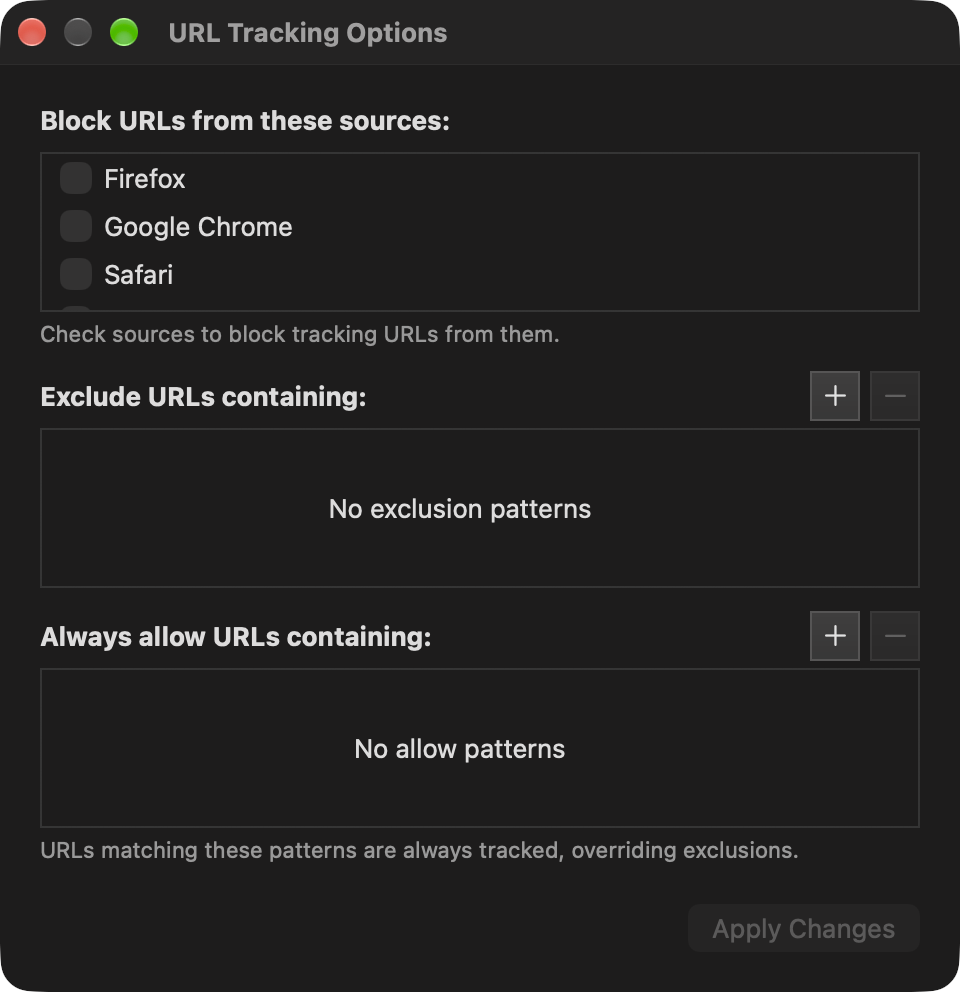
The sources list shows apps that have already sent links to Trickster. Check a source to block future links from it. If an app isn’t listed yet, send a link from it first.
Under Exclude URLs containing, use text patterns to leave out matching addresses. Patterns under Always allow URLs containing make exceptions to exclusions: a matching allowed pattern takes priority over excluded text. Blocking a source still prevents links from that app, even if their addresses match an allowed pattern. For example, you could exclude a site but allow the part of it you use for work.
Apply your changes when you’re finished. These rules control incoming links. They don’t remove links already saved in the list.
Organize links you have saved
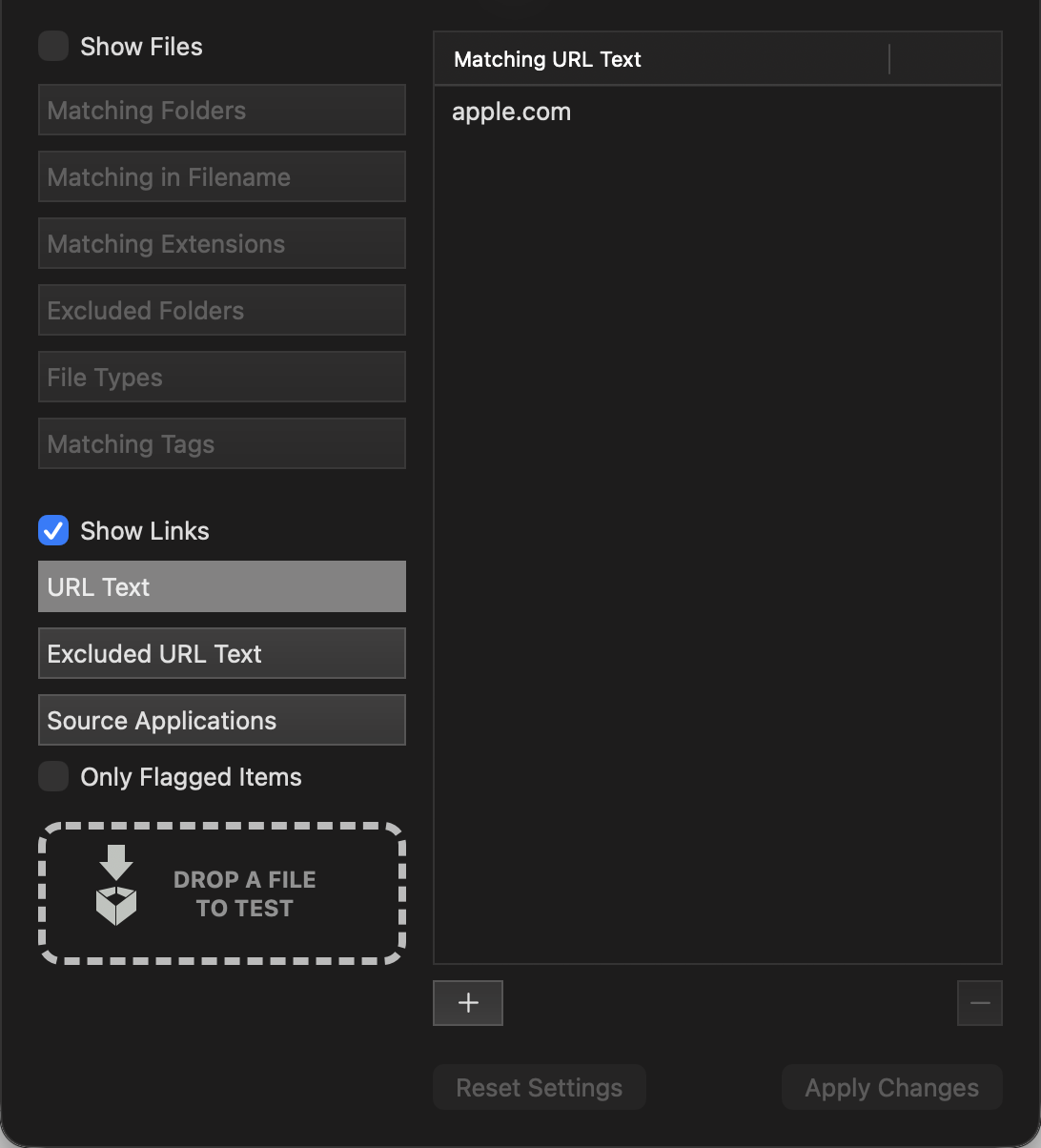
Use the bottom view control to show files, links, or both. For a project view, create a custom filter that includes links. You can match text in a link’s address or title, or choose the apps it came from.
You can flag links and add them to Favorites too. Removing a link from Trickster’s list does not delete the page or online document.
For example, enable Show Links in a filter and add apple.com under URL Text to match saved links whose address or title contains that text. This filters the links already in your list; it does not change which pages are captured.